Batch approval requests
Creating posts
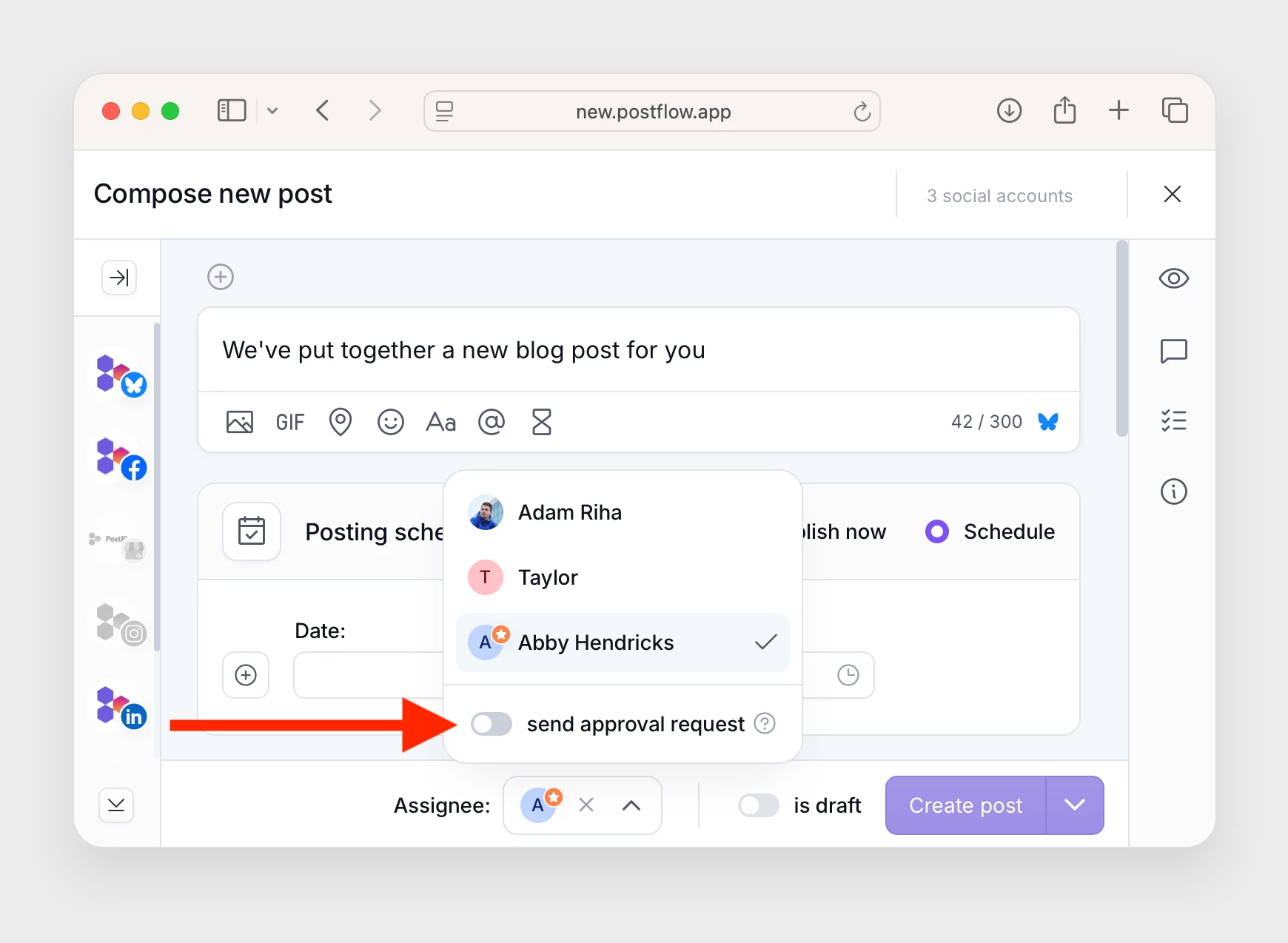
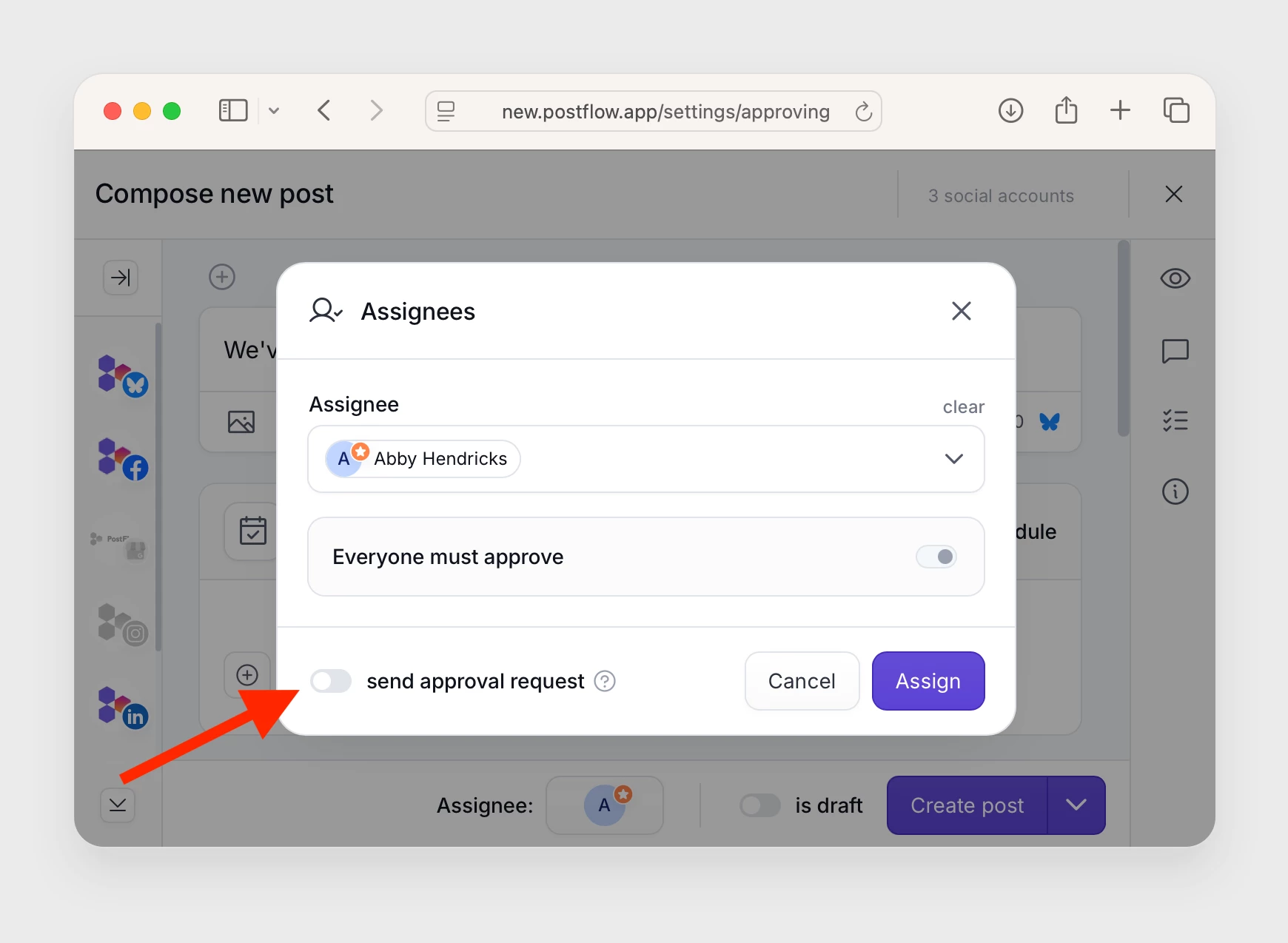
When creating a post, you can choose if an approval request should be sent.
In post composer, select assignees and uncheck the Send approval request option.
Loose workflow
Strict workflow
Sending bulk approval requests
Bulk approval requests can be sent from the approving page under the Not requested yet tab.
You have two options on how to send bulk approval requests:
- Send requests for all unapproved posts
- Send requests for selected posts
All posts
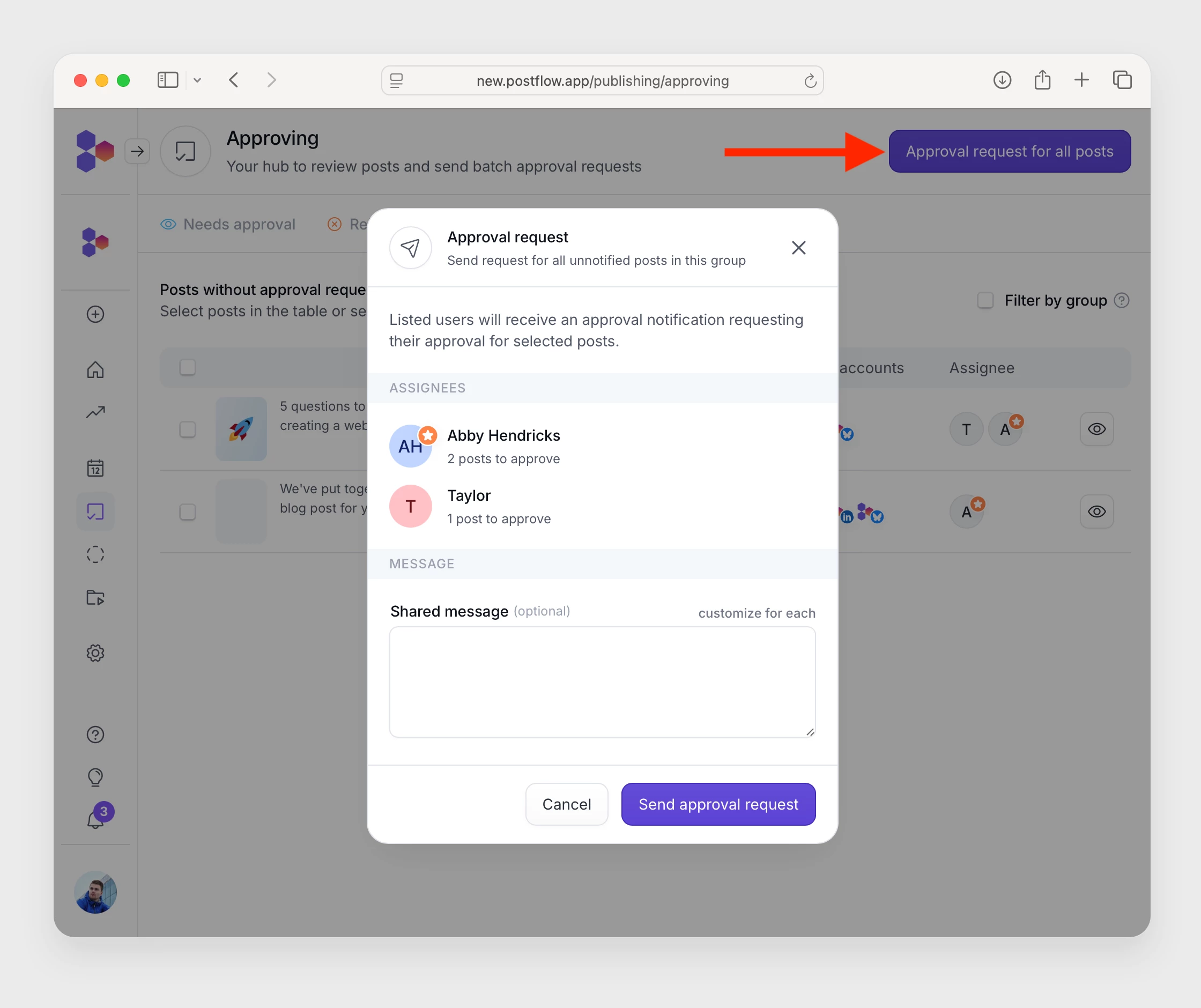
On the Not requested yet tab, click the Approval request for all posts button.
If the request is sent to multiple users, you can customize the message for each user by clicking customize for each
Selected posts
You can also send a request for selected posts only.
- In the table, select the posts for which you want to send an approval request.
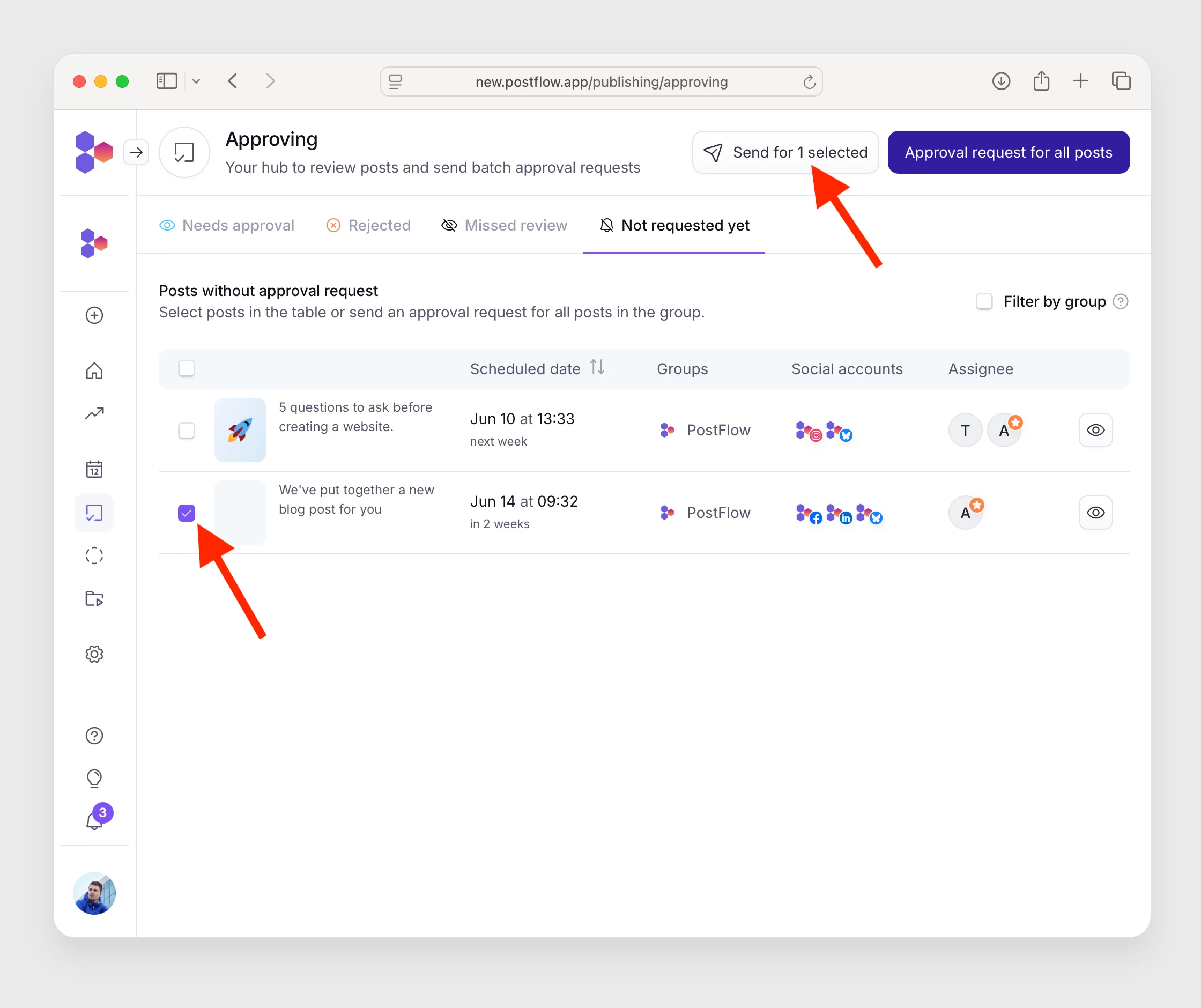
- Click the button in the header: Send for X selected
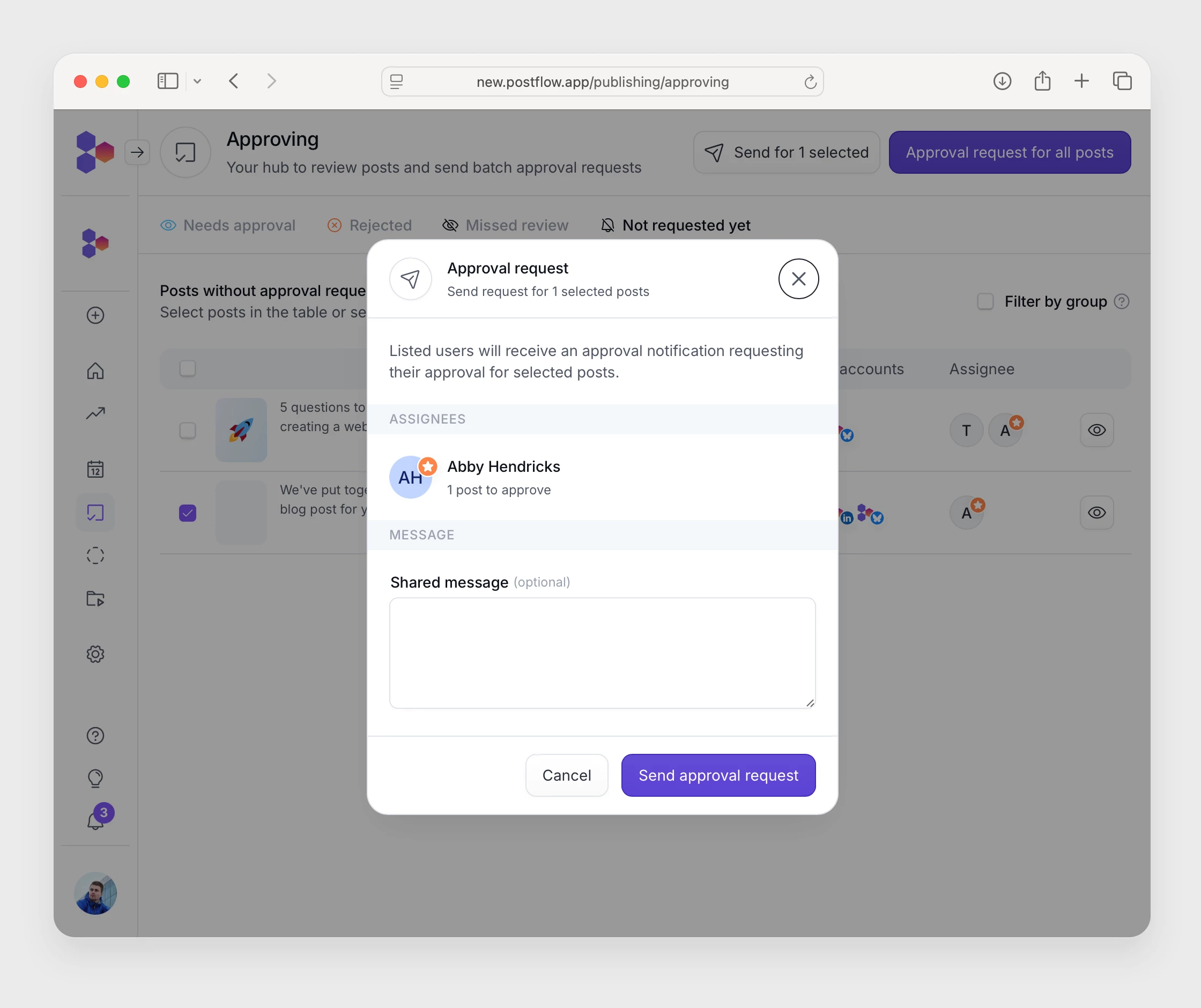
- Write a message for the user if you'd like, and click the button to send it.
Recommended settings
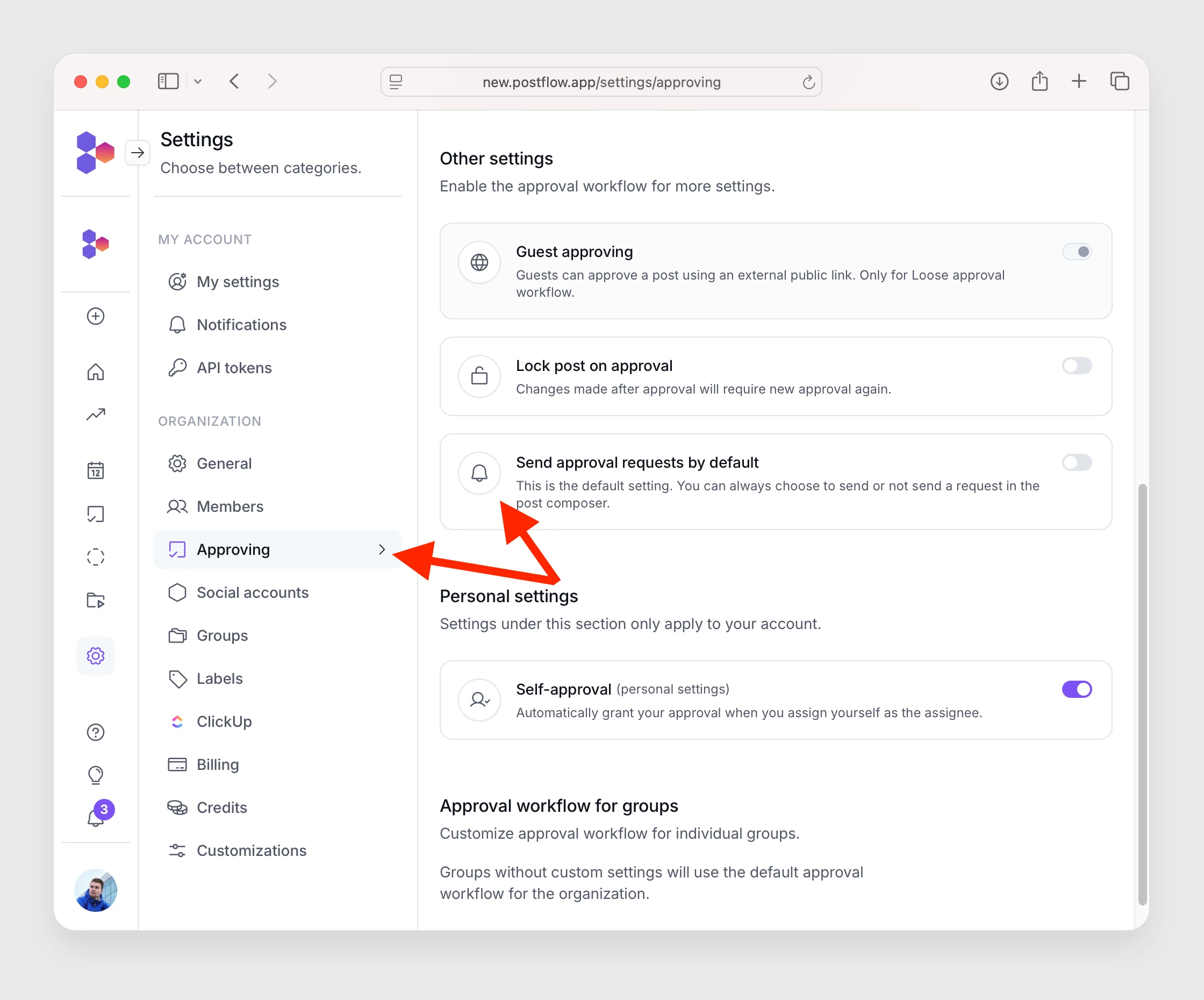
If you mostly send approval requests in bulk, you can customize the default settings for the send approval request toggle in post composer.
In organization settings set a default value that will always be preselected.
Resend request again
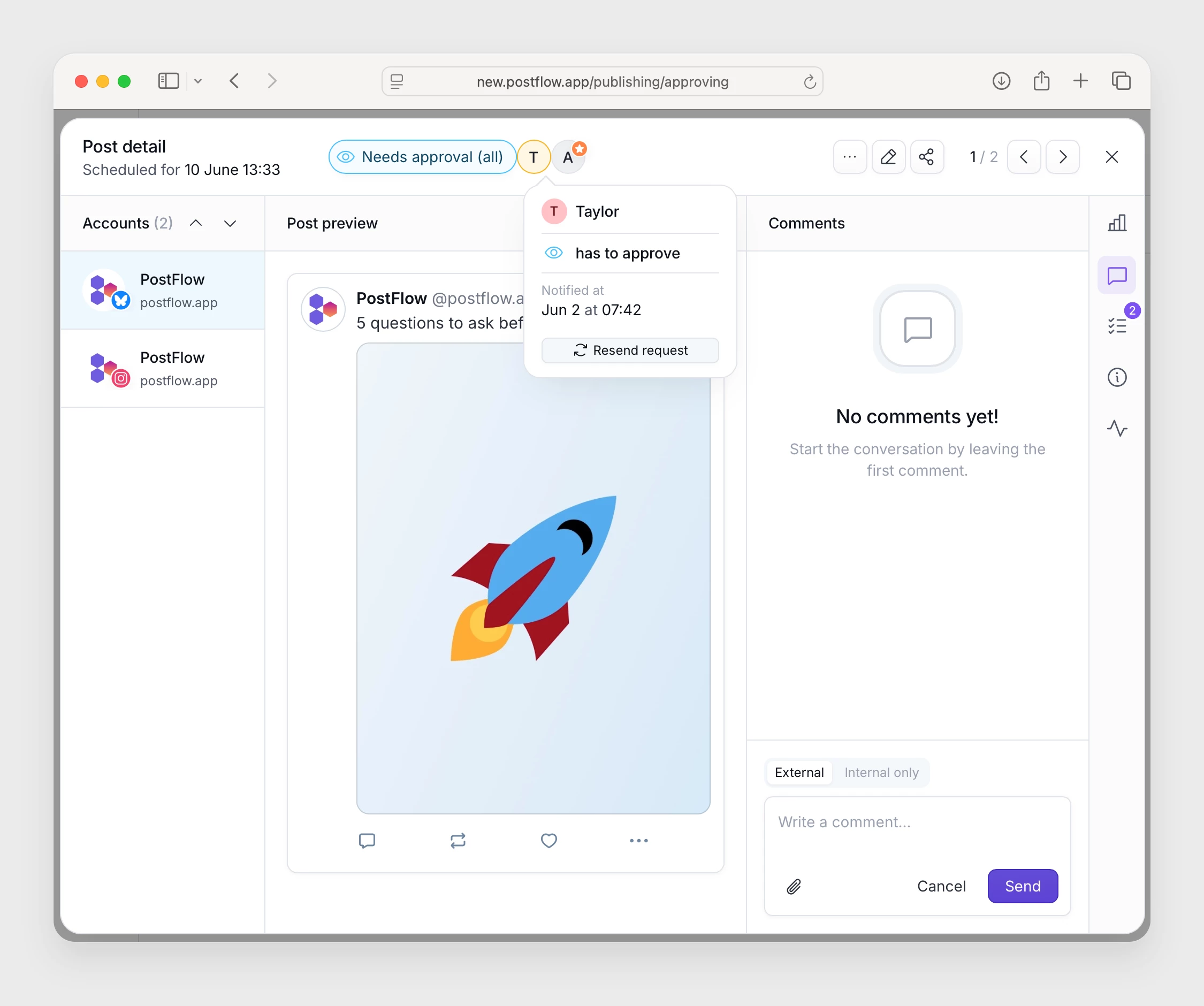
If you need to resend a request for a specific post, hover over the user's avatar and click Resend request.
You can do this in several places: on the approval page in the post table, or when you open the post detail.